

This page provides an overview of how to configure and manage scales in PIRO Fusion. Scales are used to retrieve real-time weight data directly into the system, supporting accurate item handling, manufacturing, and inventory operations.
Scales can be configured under: Configurations → Service tools → Scales
1. Scales List View
The Scales list displays all configured scales in the system. For each scale, you can view its:
- Name
- Type (AWS or Ohaus)
- Communication method (COM or Ethernet)
- Port
- IP
From this view, you can:
- Add a new scale
- Edit an existing scale
- Delete a scale
2. Scale Details Form

Name
The name of the scale. It can be any custom name and can be changed at any time.
Type
The manufacturer/type of the scale. Options:
- AWS
- Ohaus
This selection determines which communication methods and additional settings are available.
Communication method
Defines how the system communicates with the scale.
- COM — Available for both AWS and Ohaus scales.
- Ethernet — Available only for Ohaus scales.
Port / IP Address
Depends on the selected communication method:
- COM: Select a COM port from COM1 to COM20.
- Ethernet (Ohaus only): Enter the scale’s IP address and port number.
Scale weight parser
A regular expression (regex) used to parse the weight returned by Ohaus scales.
- Default:
(\d+\.\d+)[ ]*(\w+) - Extracts the numeric weight and the unit (e.g., g, kg) from the scale’s response.
Scale users
Select the FUSION users who are allowed to access or use this scale. Only selected users can see and use the scale.
Testing connection
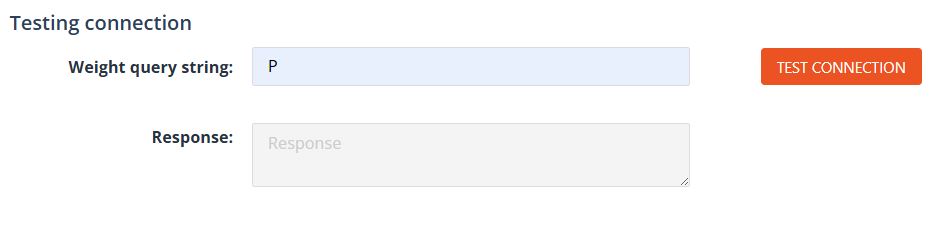
Weight query string
For Ohaus scales, enter the command to request weight from the scale. Examples:
PIPxP(replace x with the interval in seconds)
Test connection button
Sends the Weight query string and form data to the scale to verify communication.
Response field
- Displays the scale’s response if communication is successful.
- Shows an error message if the system cannot communicate with the scale.
Once the details are configured and the connection is tested, click Save to store the scale configuration. The scale will then be available to assigned users.